Mythic Unlock All Tool Guide
Getting Started
Follow the steps below to install and launch the product.
1. Preparations
Download and Run Defender Control
Defender Control
Download · loader.colortune.ru
Run and press disable until application turns red.
Ensure you have Visual C++ Libraries and DirectX installed. If not, please download and install them.
DirectX Download · download.microsoft.com Visual C++ Download · www.techpowerup.comBefore starting, make sure you have:
The game installed and updated
The launcher downloaded
The game completely closed before installing the launcher
Important: Do not open the launcher until you reach the appropriate step below.
2. Installing the Launcher
Download the Launcher
Download Launcher (Click Here)
Do not open it yet.
3. Starting the Game
Step 1 — Open the Game
Open the game normally and wait until you reach the Main Menu.
Step 2 — Open the Launcher
Once you're in the Main Menu:
Open
CWUA.exe.Wait for the launcher to initialize.
Wait until it displays Ready.
Make sure the launcher says Ready before continuing.
Step 3 — Activate
Once the launcher shows Ready, head to the Battle Pass.
Click on any of the Battle Pass tiers.
Alternatively, you can press 1 on your keyboard.
⏳ Note: Your game may temporarily freeze during this process. This is normal. Give it a moment before doing anything else.
⚠️ Important Information
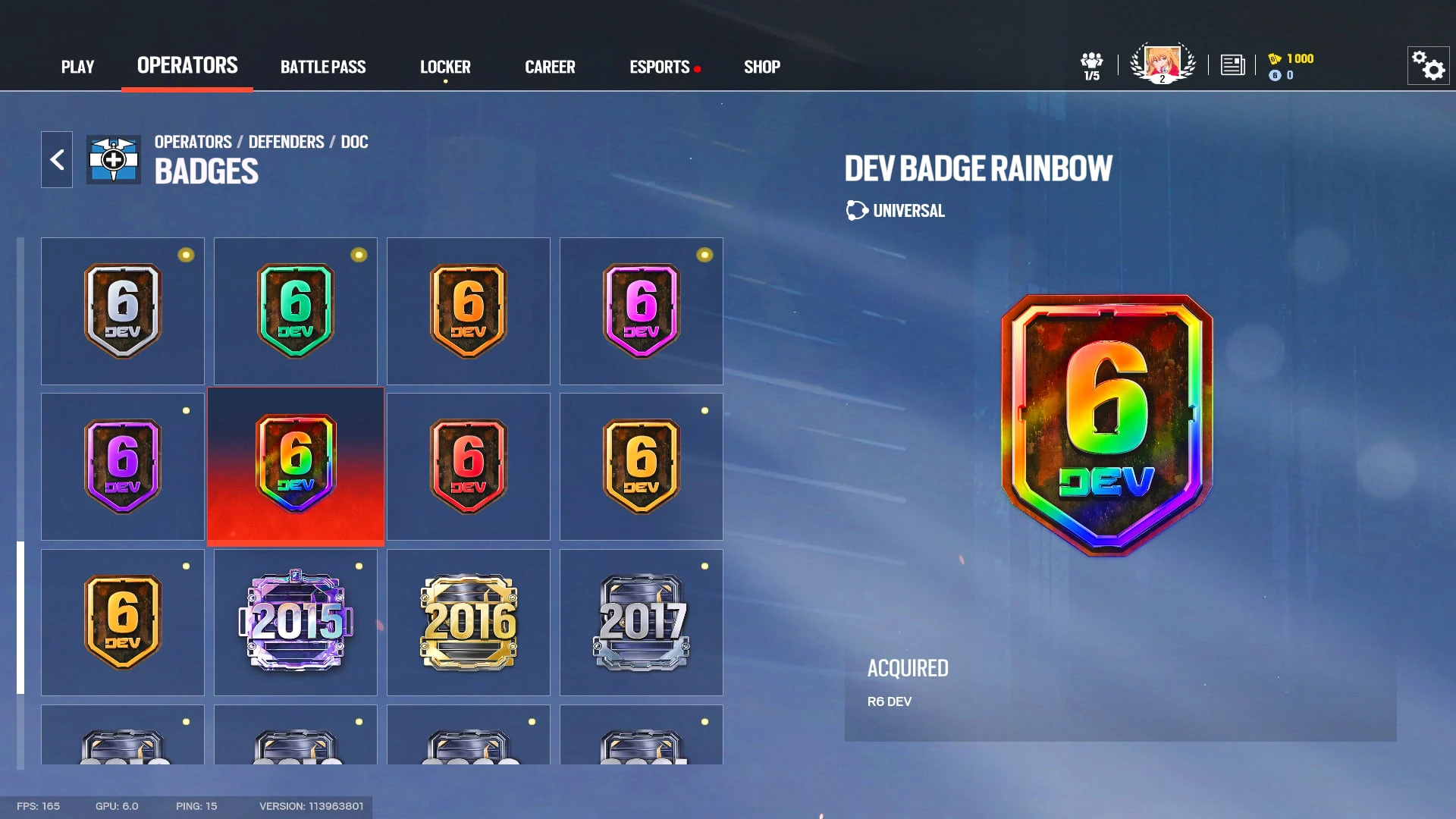
Unreleased & Developer-Exclusive Items
Using unreleased skins or developer-exclusive items carries a risk.
Other players can see these items.
Use unreleased or developer-exclusive content at your own risk.